Fast
Checks a full card in seconds.

Finds every photo and clip from your card on your backup drives, even if they were renamed or moved, and checks each copy byte by byte.
Version 0.0.15 · 5 MB · macOS 14 Sonoma or later
How it works
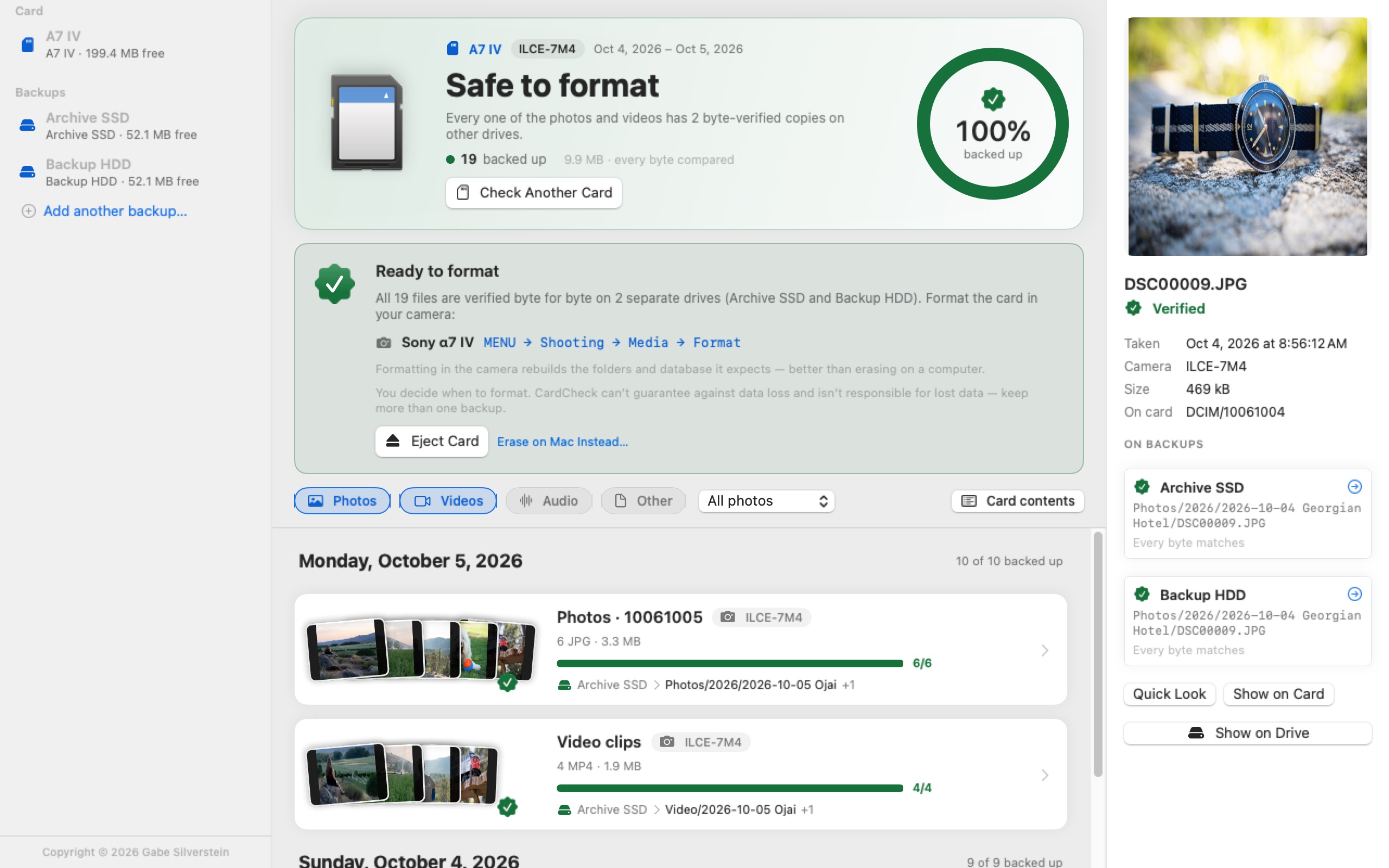
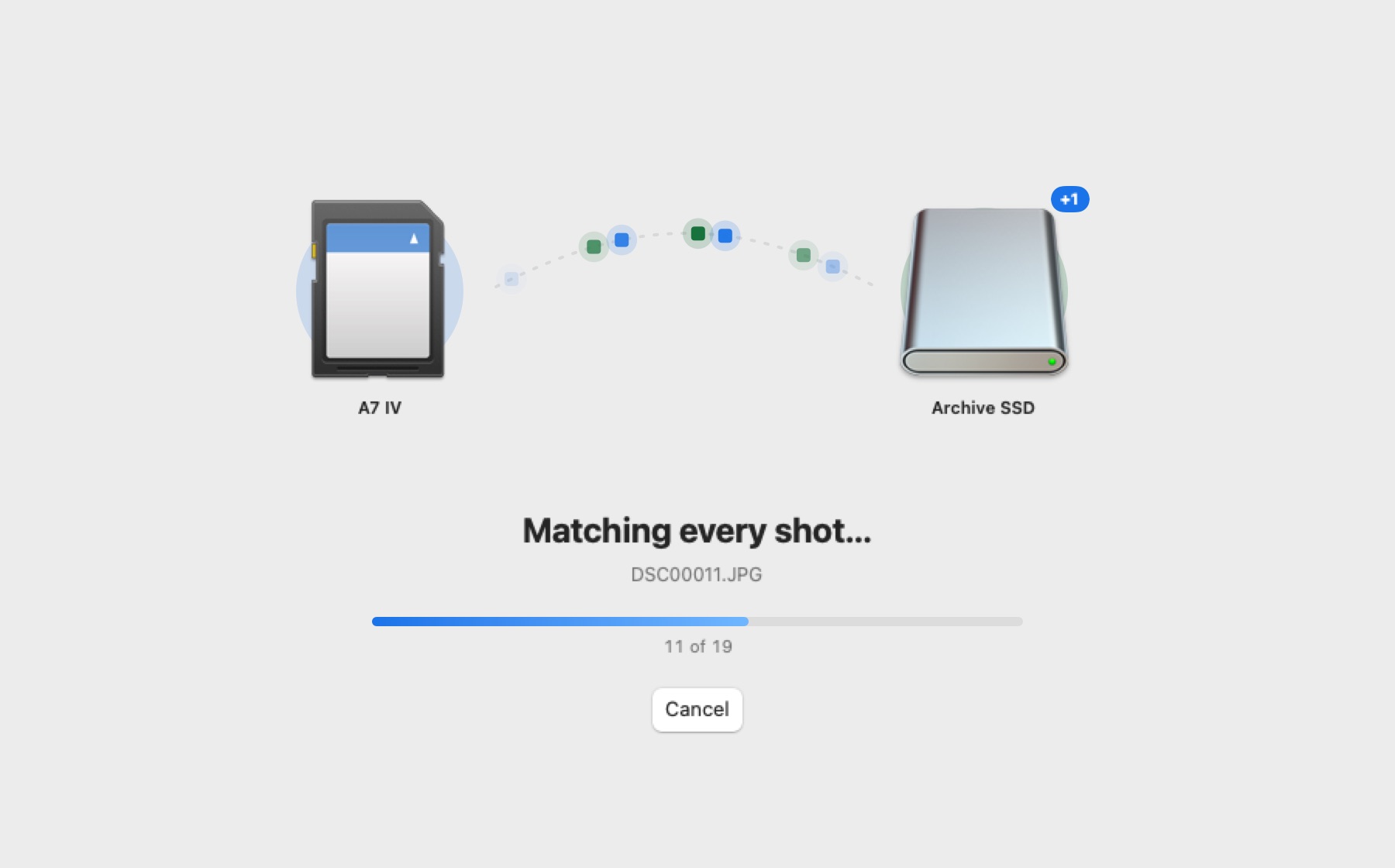
SD CardCheck remembers your backup drives.
See what’s backed up in seconds. Then every byte gets verified.
When every file is on two drives, it says Safe to format.
Camera-aware
Clips in PRIVATE/M4ROOT, date-named folders, thumbnails, proxies, hidden ._ files. SD CardCheck knows which files matter and checks those.
What’s on A7 IV
ARW476MP463XML63OptionalJPG63Not neededBIN, BDM9Not needed._*12IgnoredShoot RAW + JPEG but keep only RAWs? Choose RAW only. Lone JPEGs still get checked.
Proof, not guesses
Two different photos can share a name and size. SD CardCheck compares the actual content, so it catches look-alikes and still finds renamed copies.
Why SD CardCheck
Offload apps and importers only check their own copies. SD CardCheck checks everything, whichever app made it.
| Feature | Offload apps | Photo importers | SD CardCheck |
|---|---|---|---|
| Checks cards copied with any app or Finder | Only its own transfers | Only its own imports | |
| Finds renamed or re-sorted shots | Only its own renames | Only in its catalog | |
| Proves each copy byte for byte | Only while copying | Varies | |
| Checks all your drives at once | The drives it copied to | — | |
| Shows where each shoot landed | In its own logs | In its catalog |
Keep your favorite offload app. SD CardCheck double-checks the result.
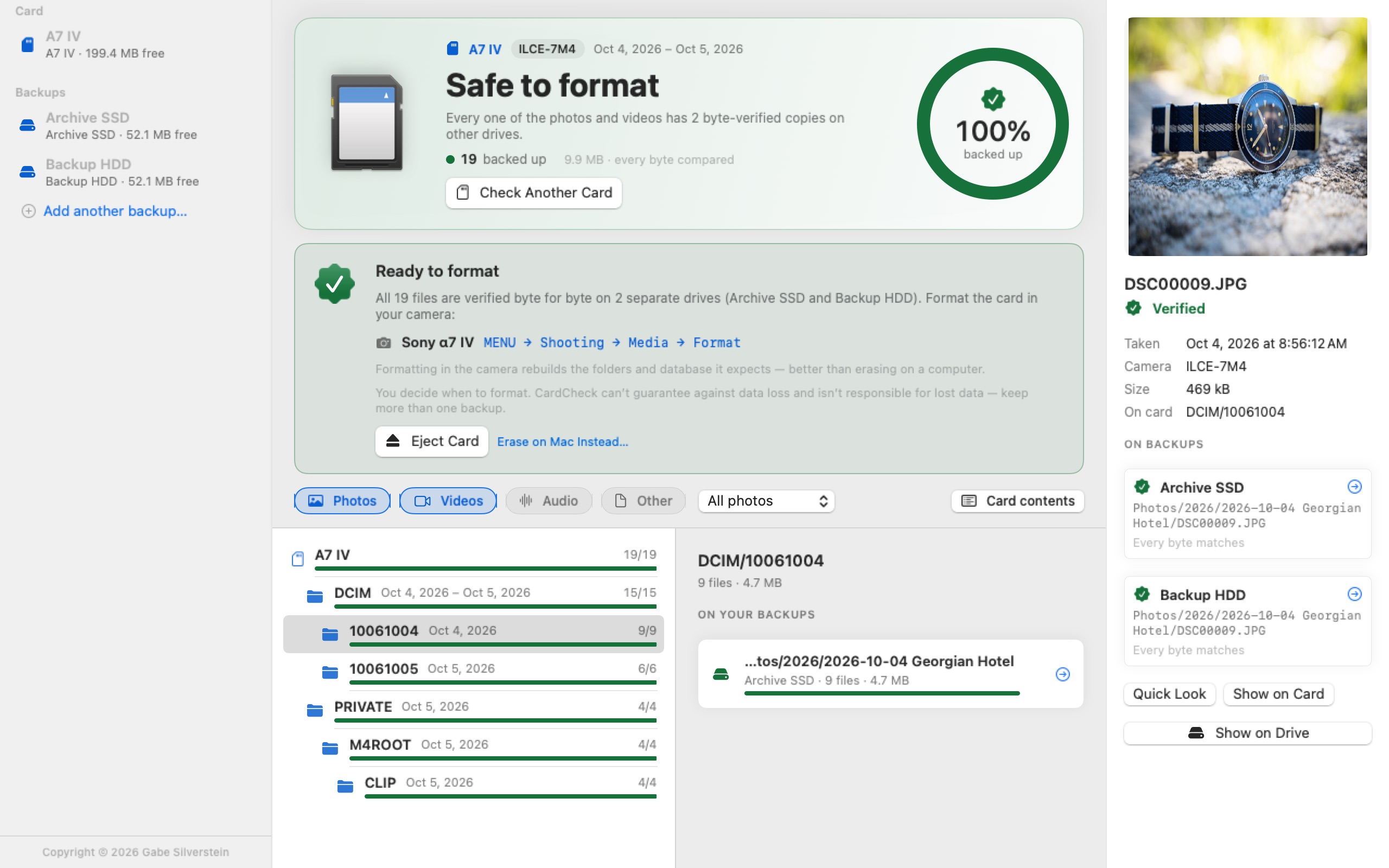
By shoot and date
Each card is grouped into shoots by camera and day, with where each one landed on your backup.
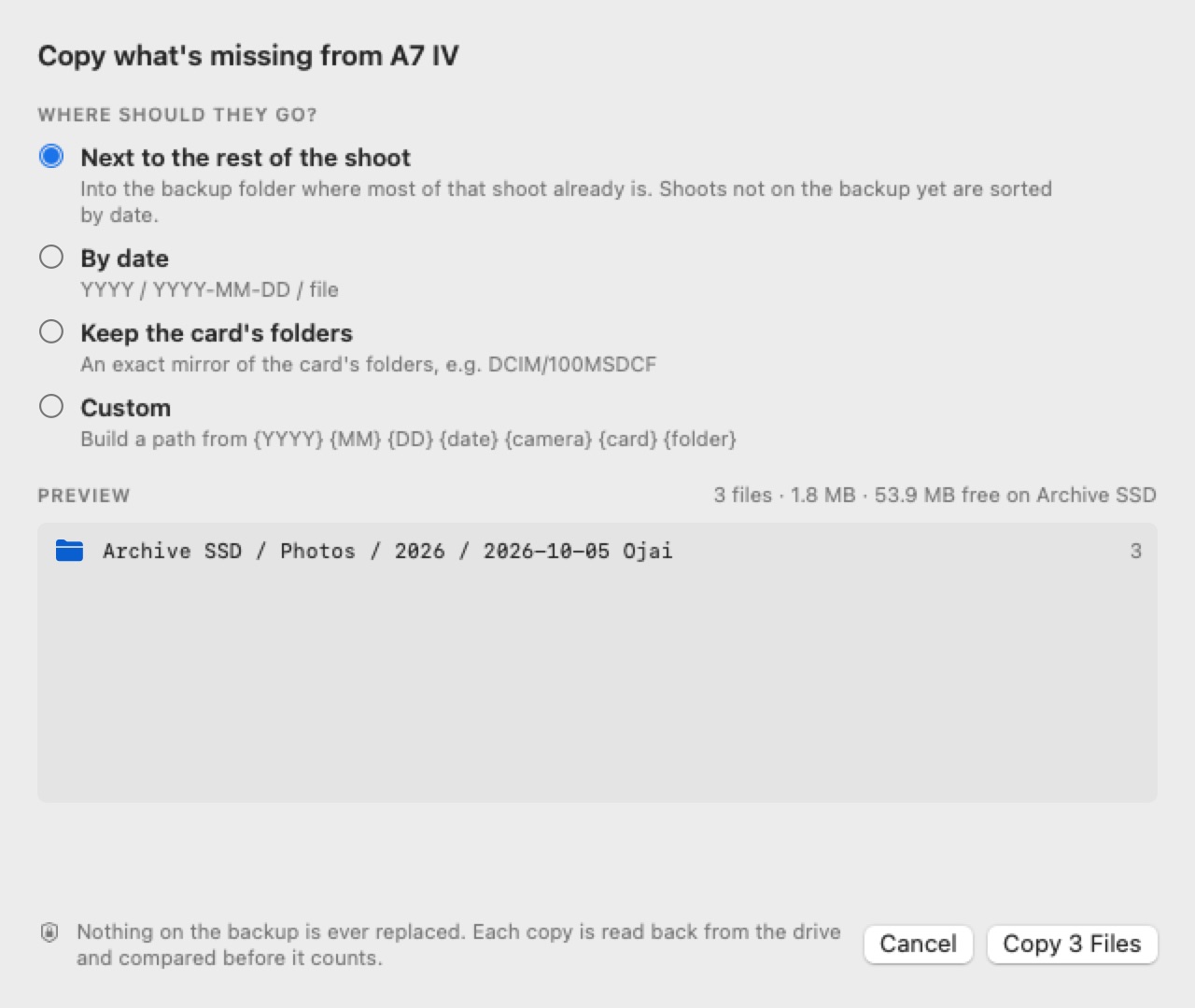
Copy what’s missing
Copies only what’s missing, next to the rest of the shoot or into a folder you pick. You see where everything goes first.
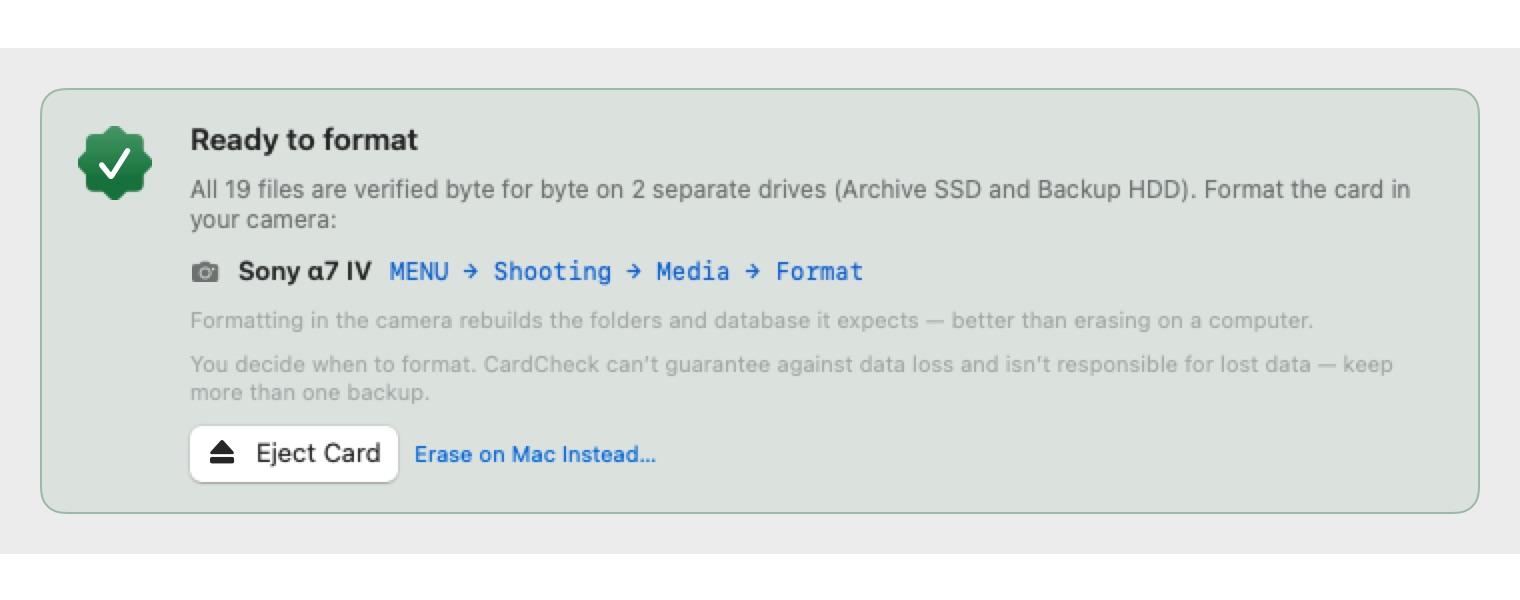
Safe to format
You only see Safe to format when every file is verified on two separate drives. Then it shows how to format in your camera.
And the little things
Checks a full card in seconds.
Reopen any checked card, even after ejecting.
Jump to any backup copy in Finder.
Any mix, or only RAWs or JPEGs.
See every shoot on a card before backing up.
Check the same card against another drive.
Checked only photos? It reminds you about videos.
Pick where copies go, then add them to Lightroom.
Safe by design
Why I made SD CardCheck
As a photographer and videographer, the part of the job I dreaded most was formatting cards.
I’d cross-check photos and clips by hand to make sure everything copied. After multi-day shoots or cards from several cameras, that took hours.
So I built the app I wanted: insert a card, press one button, and know every file is backed up.
Now formatting is stress-free.
FAQ
No. It only reads your card. The one thing it writes is copies of missing files, to a backup folder you choose, never over an existing file.
Yes. It finds your files wherever they ended up: Lightroom, Capture One, Photo Mechanic, Final Cut, Premiere or dated folders, on any drive.
Every file you checked has a verified copy on at least two separate drives. You can change the number in Settings.
Cameras set up their own folders when they format. A card erased on a Mac can cause errors. SD CardCheck shows the menu path for your camera.
Any card with a DCIM folder, plus Sony, Canon, Nikon, Fujifilm, Panasonic, OM System, GoPro, DJI, Insta360, RED and Blackmagic layouts. RAW, JPEG, HEIF, MP4, MOV, MXF, BRAW, WAV and more.
An 18 GB card against two 4 TB drives: first answer in under ten seconds, every byte verified in about two minutes.
No software can. Always keep more than one backup. See the disclaimer.
No. Everything happens on your Mac.
More apps